New Release: Dramatica Platform v5.3.3

This week’s release contains some really cool new features:

Dramatica Platform Release Notes — 5.3.3

Narrova Notes and the Narrova Skills Manager headline this release in Subtxt. Storyform Alignment is now a Narrova Skill, so you can run multiple Alignments at once and track progress in the Manager at the top of the screen.

Highlights

  • Narrova Notes: capture and revisit insights per conversation.
  • Narrova Skills Manager in Subtxt with multi‑Skill runs and progress tracking.
  • Storyform Alignment promoted to a Narrova Skill.
  • Legacy Illustration library (Gists from the old Dramatica app) now live in Subtxt.
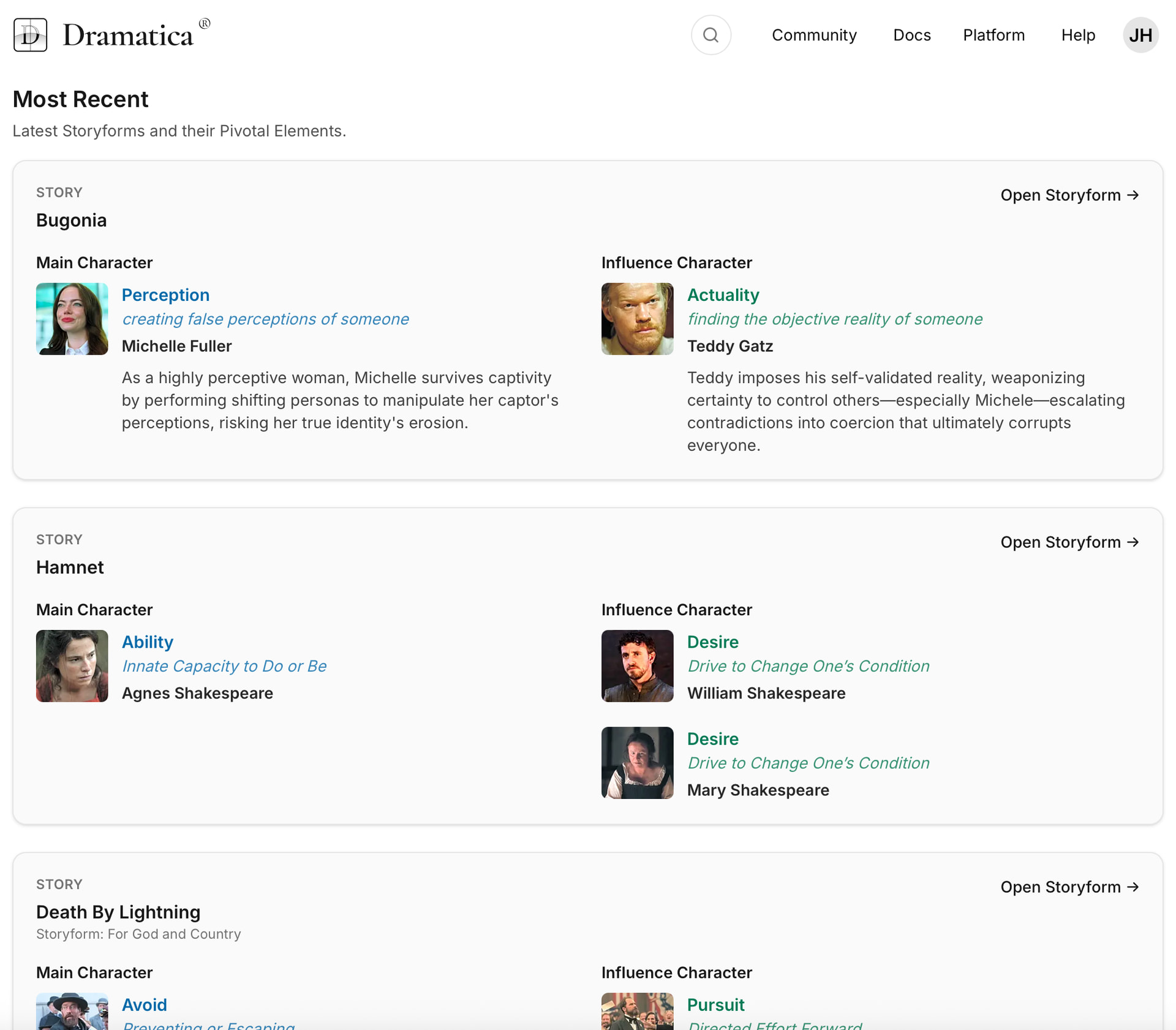
  • New Pivotal Elements Narrative Resource to scan pivotal elements across films, novels, TV, plays, and games and lock in the fundamental argument of your story.
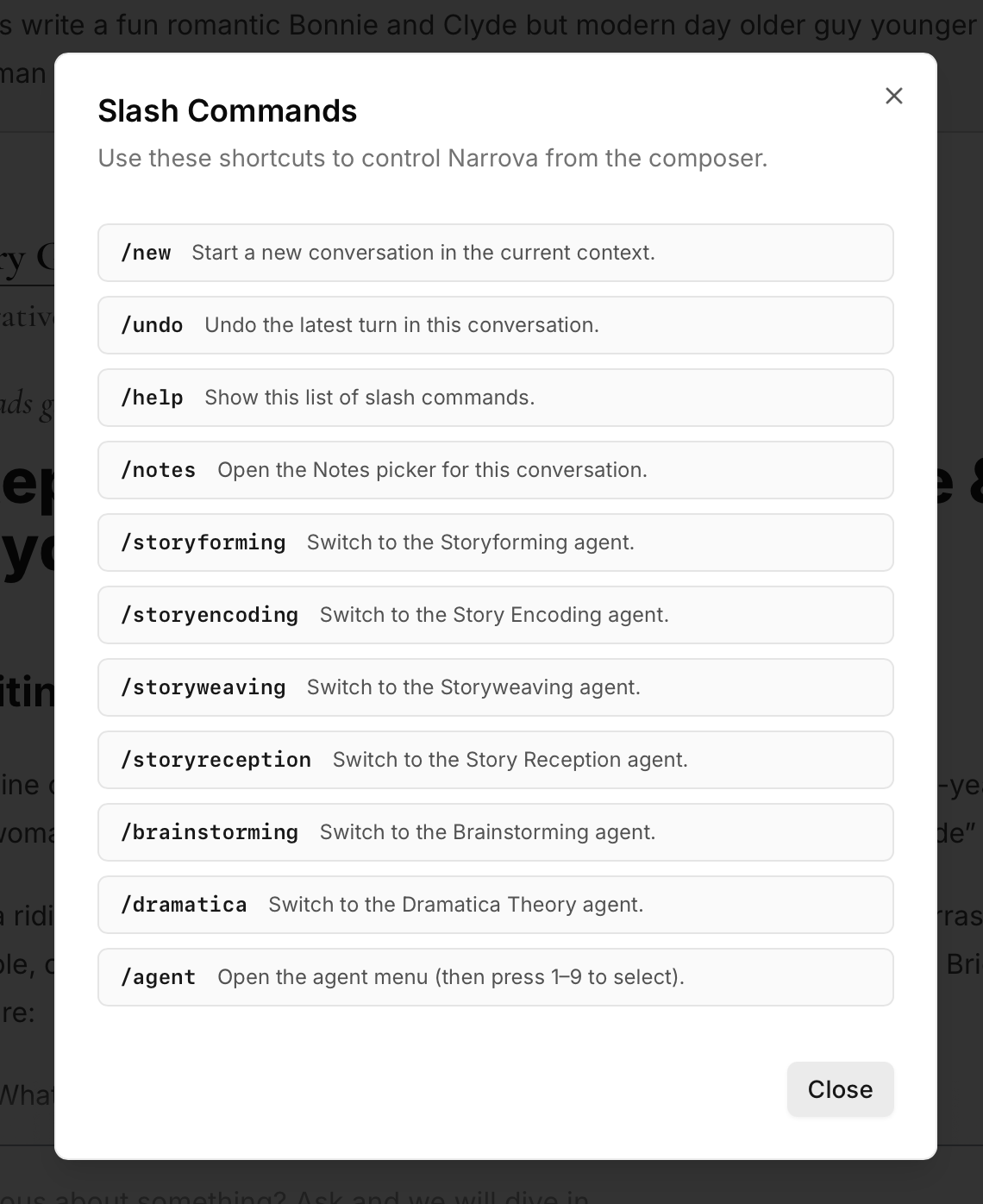
  • new Narrova Slash Commands
    • /new - Start a new conversation in the current context.
    • /undo - Undo the latest turn in this conversation.
    • /help - Show this list of slash commands.
    • /notes - Open the Notes picker for this conversation.
    • /storyforming - Switch to the Storyforming agent.
    • /storyencoding - Switch to the Story Encoding agent.
    • /storyweaving - Switch to the Storyweaving agent.
    • /storyreception - Switch to the Story Reception agent.
    • /brainstorming - Switch to the Brainstorming agent.
    • /dramatica - Switch to the Dramatica Theory agent.
    • /agent. - Open the agent menu (then press 1–9 to select).

Additional Improvements

  • Storyform Alignment for all Storypoints now work.
  • Canonical Storypoints added.
  • Storyform display alignment refined.
Narrova Notes is a feature suggested by a user who asked if we could set up some way to “favorite” individual responses from Narrova that would be both searchable and accessible throughout the app.

So, we added it. :innocent:

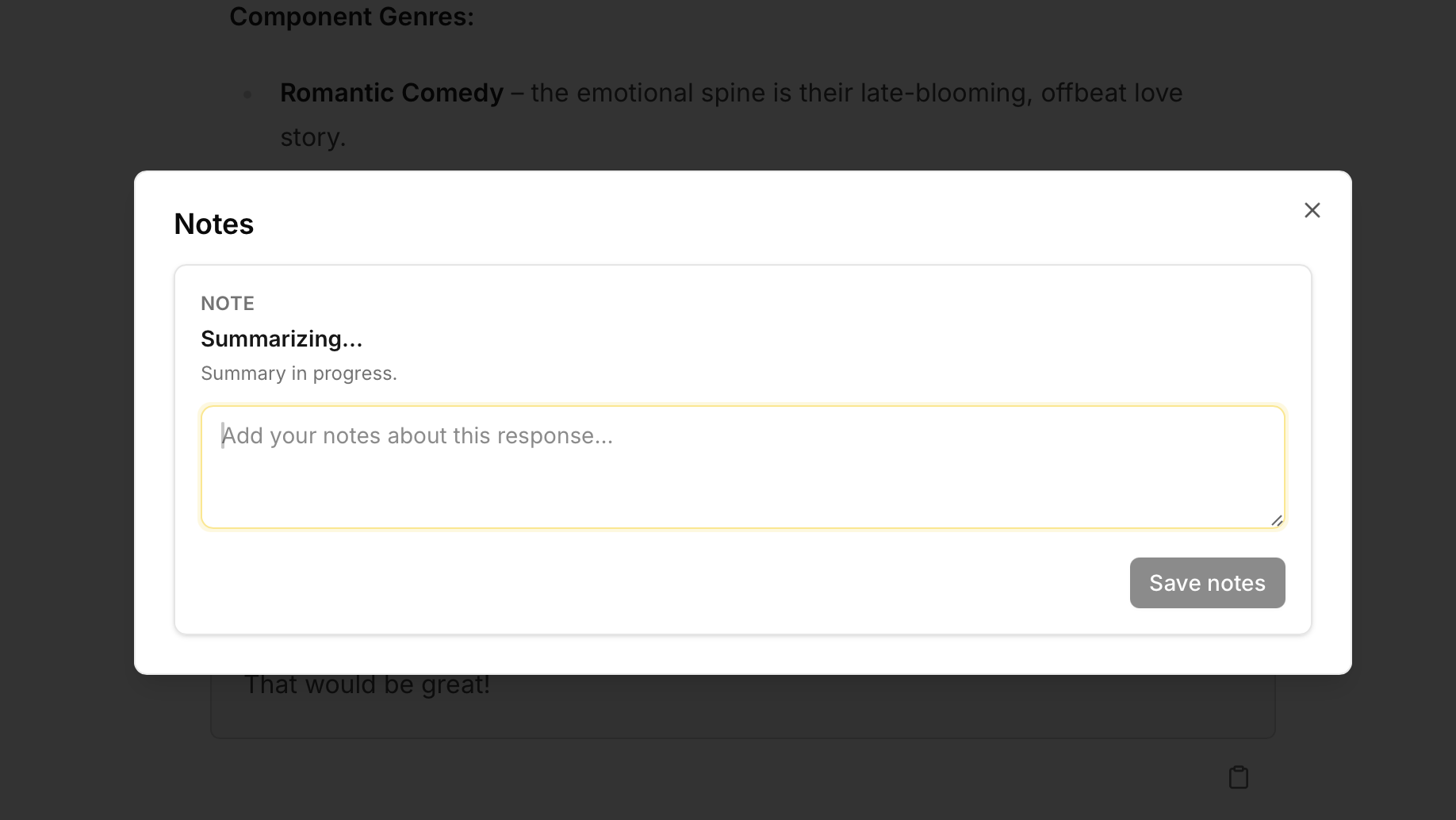
At the bottom of every response, you’ll now see a “star” icon right next to the copy to clipboard action.

Tap it to find yourself presented with the initial Notes view:

While Narrova goes about summarizing the response into something easily readable and searchable, feel free to add your notes including–but not limited to–messages to yourself in the future to follow-up on any ideas that sprung to mind when reading through this initial response.

Once the summary and your additional notes are complete, feel free to tap Save notes to be returned back to the Narrova stream.

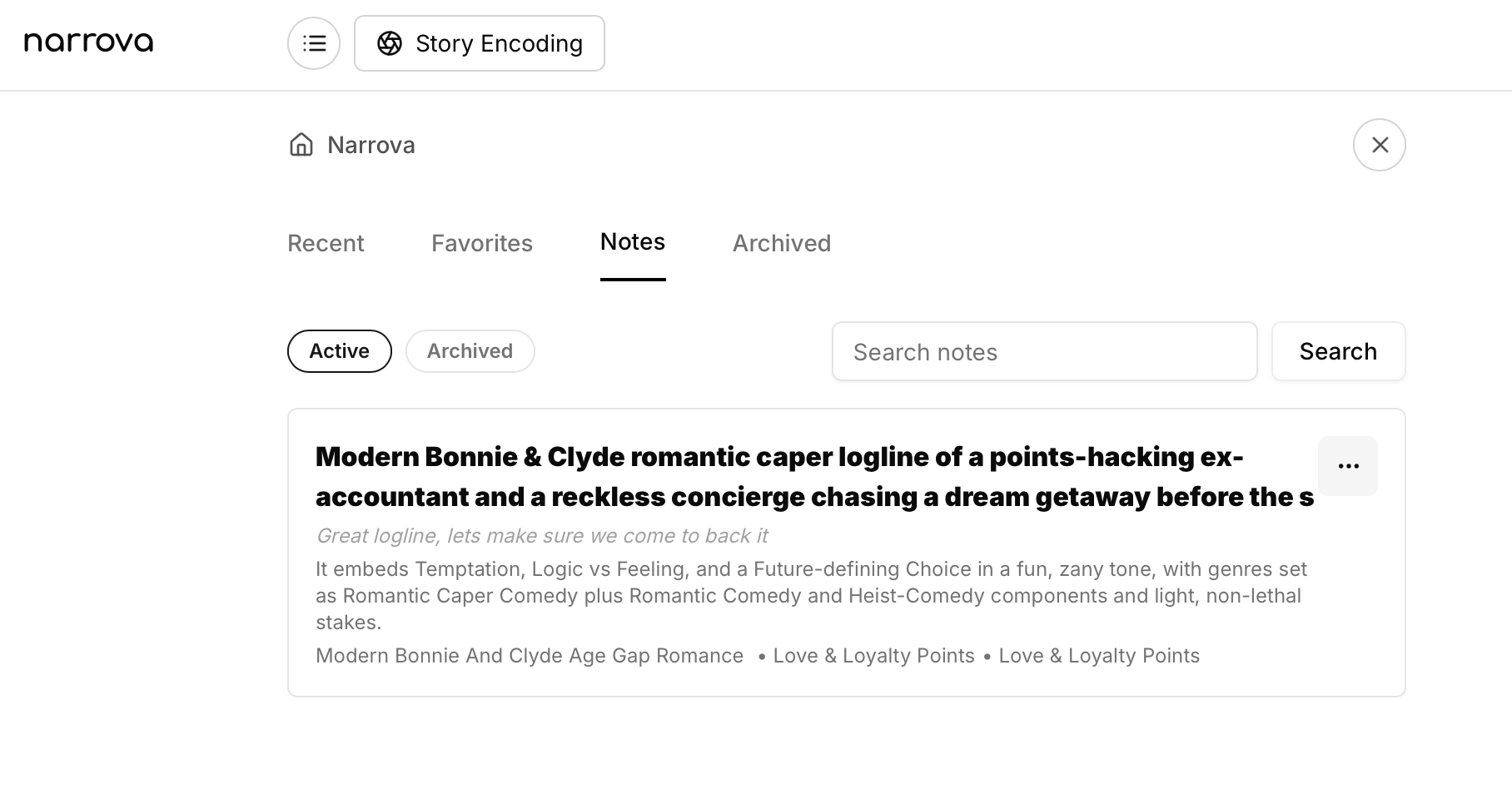
You’ll now find an additional Notes tab on the main Narrova dashboard.

Notes are organized in two main sections: Active and Archived, and you can easily tap on any to be taken directly to that note within the context of the full conversation.

You can also choose the three-button action for each Note which will send you to both the Note in-line, or the end of the Conversation holding that Note. You can also Archive a Note when you are finished (equivalent to filing it away), or Open Note to re-visit the full response and your original notes.

You can Jump and Archive here as well, but you can also tap Start New to have Narrova open up a new conversation with this prompt and your notes appended to the initial request.

This way, you can develop as you wish, marking down ideas and notes that you might want to re-visit or explore later. And then when you do go over them again, if you want to start fresh and see where that idea takes you, tapping Start New will get you set on your way.

We should point out too that you can access Notes from the three-button action at the top of every conversation.

Opening Notes here lets you set “bookmarks” on your most important responses so that you can quickly scroll to them. Important when you’re in the flow and want to get to the good parts.

Looking forward to hearing how this helps out your Story Development process!

The other big new feature with this release is the update and improvement of the Narrova Skills Manager as well as the integration of Storyform Alignment into this manager. These “skills” were formerly called “Narrative Tasks” in the original version of Subtxt, but are now referred to as what they are in the AI-world (at least, the current state of the AI world).

When updating, we quickly realized that the Storyform Alignment interaction is also a Skill and should be improved to work nicely with that flow already set in place. You can now quickly send off multiple Storyform Alignment requests without having to wait for one to finish before starting a new one.

As a reminder, the Storyform Alignment Skill allows you to sync up any ideas you might have for a particular bit of your narrative with the Storyform itself. For example, let’s say you’re working on the Relationship Story Throughline in your narrative which concerns romantic partners. The Concern is Subconscious, and the current random Illustration you landed on was fearing heights.

By tapping Storyform Alignment, you open up the Alignment form where you could enter some ideas to “mix” in with the request, or simply tap the Alignment button again to have Narrova start to generate storytelling on its own.

Here, we want to add in that these romantic partners are experiencing the growth of their relationship through “fearing heights”, but we also want to incorporate the idea that they are from two very different parts of their home country.

Once we tap Storyform Alignment to confirm the request, Subtxt sends off the request to Narrova. We can follow progress by either waiting for the response here OR we can scroll up to the Skills Manager button at the top of Subtxt to watch everything unfold in real time.

We cancel the request or we can wait for it to complete.

Once finished, we can read through the generated storytelling to see if it captures our imagination. In this way, you allow Narrova to help align your artistic intent with the current Storyform, ensuring that story development stays aligned with your thematic intent and purpose of the story.

You can Accept the new storytelling, Reject it, or even Run it again from here within the Manager. You can also quickly jump to the Storypoint within Subtxt by tapping Open.

All Storypoints have been opened up to this new integration, so feel free to experiment and see what works best for you.

The Illustration library from Subtxt (“gists” for those of you coming straight from the legacy Dramatica application) are now available for quick access.

Simply tap on an Illustration to have it replace the one you currently have selected. You can also tap the Find Illustration there to the right (the target/summary icon) to have Narrova read through your current Storytelling and pick the most appropriate Illustration for you. Lastly, you can always tap the Shuffle Illustration to have Subtxt pick a random one for you.

Note that there are thousands and thousands of Illustrations available per Narrative Function. That’s why we only load 50 at a time. You can always tap the “Shuffle 50” button to have Subtxt reach out for another random set.

Note: The ability for Narrova to review new Illustrations like you could in the previous version of Subtxt will be forthcoming in a future release.

Next up we have the Pivotal Elements Narrative Resource from the Subtxt app.

Think of this as a tool to help familiarize yourself with the fundamental argument at the center of every complete Storyform. Organized into four Pivotal Elements Groups, this resource is a great way to get in touch with the kind of conflict that attracts you the most.

Generally speaking, if you’re caught between two or three different possible Storyforms, the Pivotal Elements will lock you in on the most appropriate one.

The last big feature of this release are Narrova Slash Commands. If you’re in the flow with fingers on keyboard, there’s little chance you want to reach for that touchpad. With Slash Commands you can now quickly start a new conversation, undo the last response, bring up your notes, or switch Narrative Agent on the fly.

Simply tap the ‘/’ key on your keyboard followed by one of these commands to quickly activate and take command of Narrova.

We hope this latest release helps unlock some amazing storytelling prowess - enjoy!

I’m finding Notes is invaluable, as a sort of Contents list for important bits of a conversation I think I might want to return to later. Using the Notes this way saves me the headache of having to think up Search/Find words that might let me find what I’m looking for (using the Search feature in Firefox) in a Narrova conversation.

The only addition I’d like is make the Notes (not necessarily the Summary) exportable with a built-in link to the text. So the link is usable in a Markdown app like Obsidian. But that’s probably unrealistic, so I’m thankful for the Notes as they are. :wink: Then again, if the summary was included, you could set the Notes/Summary at the top of the Markdown download, and it would make content easier to search when it was in a Markdown app.

1 Like

Thanks so much for the feedback—really helps to hear how everyone is using it.

Let me see what I can do about making that link idea an option!